Exports
Exports turn an OpenSearch query into a downloadable file. You supply a Lucene query against the attributes or events index plus a target format; the export runs asynchronously in a Celery task, transforms the matching documents, and stores the artifact in local/Garage (S3) storage. The exports list tracks each job's state and lets you download the produced file.
Exports can also be scheduled to re-run regularly. A scheduled export re-runs in place — each run overwrites its own file — so a downstream consumer can always fetch the same URL for the latest results.
Concepts
| Term | Description |
|---|---|
| Query | Lucene query run against the selected index |
| Index target | Which index to export: attributes or events |
| Format | json, misp (MISP JSON), csv, or stix (STIX 2.1) |
| Status | queued, running, completed, or failed |
| Schedule | Optional recurring cadence (crontab). When set, the export re-runs automatically and overwrites its previous file |
| Schedule enabled | Whether the schedule is active (enabled) or paused |
Formats
| Format | Output | Notes |
|---|---|---|
json |
Raw OpenSearch _source documents |
Passthrough dump |
csv |
Flattened rows of the most useful fields | Tags joined with | |
misp |
A single MISP-schema event | All matches are merged into one event named after the export |
stix |
A STIX 2.1 bundle | Attributes are grouped into events and converted via the misp-stix library |
MISP format
The misp format collects every matching attribute into a single MISP
event (named after the export), even when the attributes come from
different misp-workbench events. It requires a distribution level and
keeps correlation enabled. The uuid and id fields are stripped from the
event and its attributes, so importing the file always creates fresh
records rather than colliding with existing ones. first_seen/last_seen
are emitted as microsecond ISO-8601 strings
(e.g. 2026-06-19T00:00:00.000000+00:00), and any field with a null
value is omitted to keep the output compact.
STIX limits
STIX 2.1 conversion is CPU-intensive, so STIX exports are capped at
10,000 records — narrow the query (or use JSON/CSV) for larger result
sets. All export jobs also have a server-side time limit; a job that exceeds
it is marked failed rather than left running.
Creating an Export
- Go to internals → exports and click the + New Export button.
-
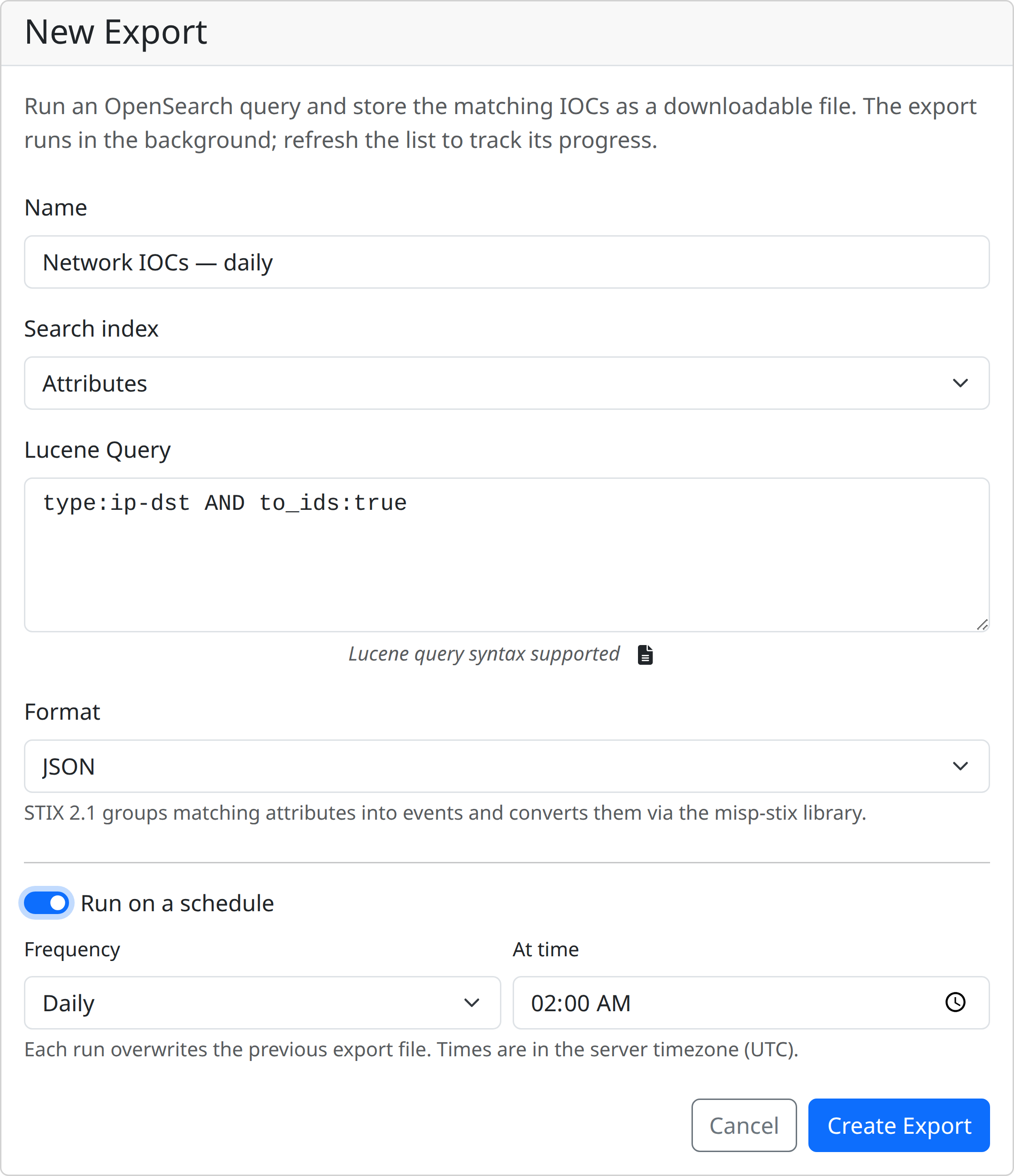
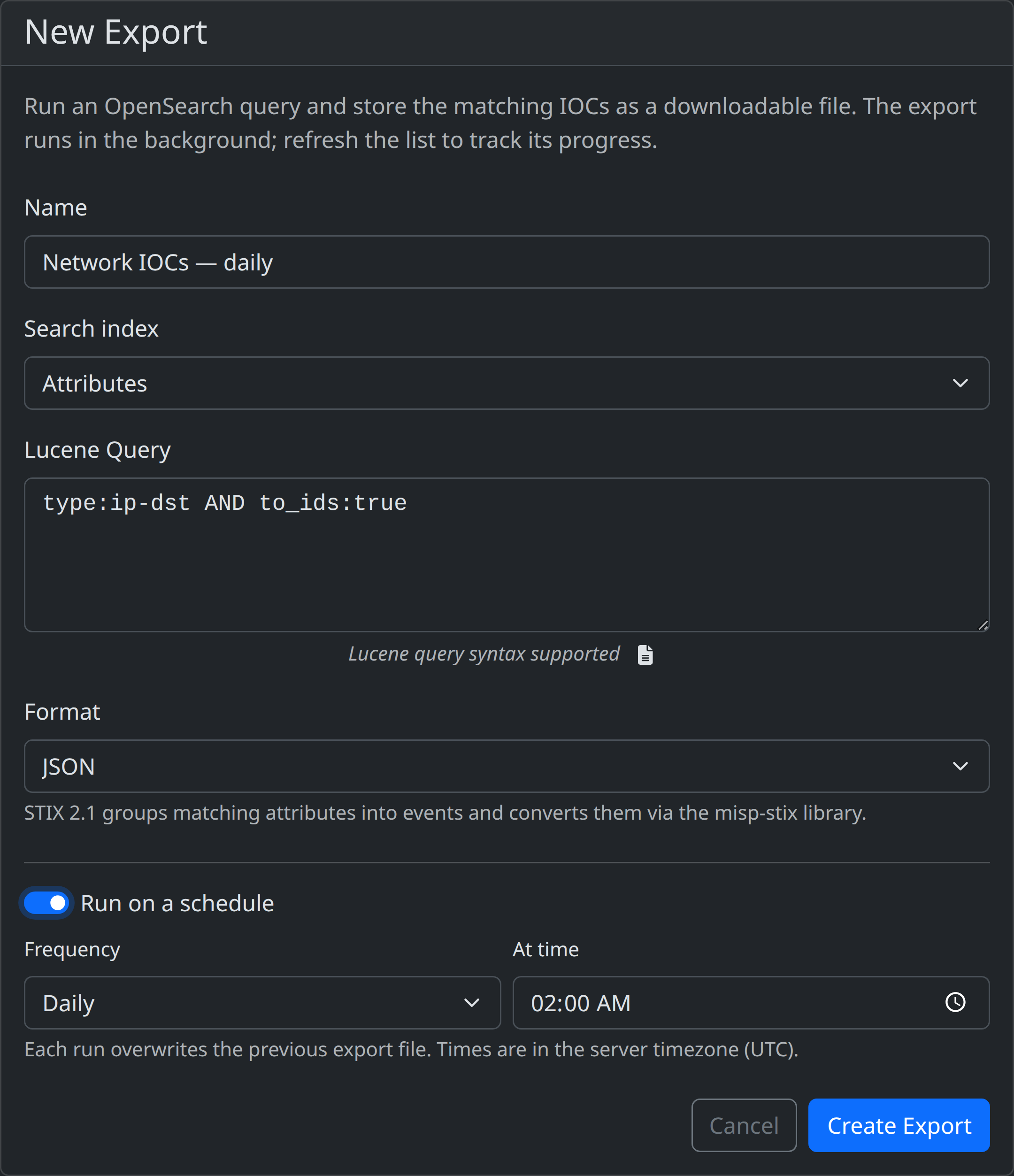
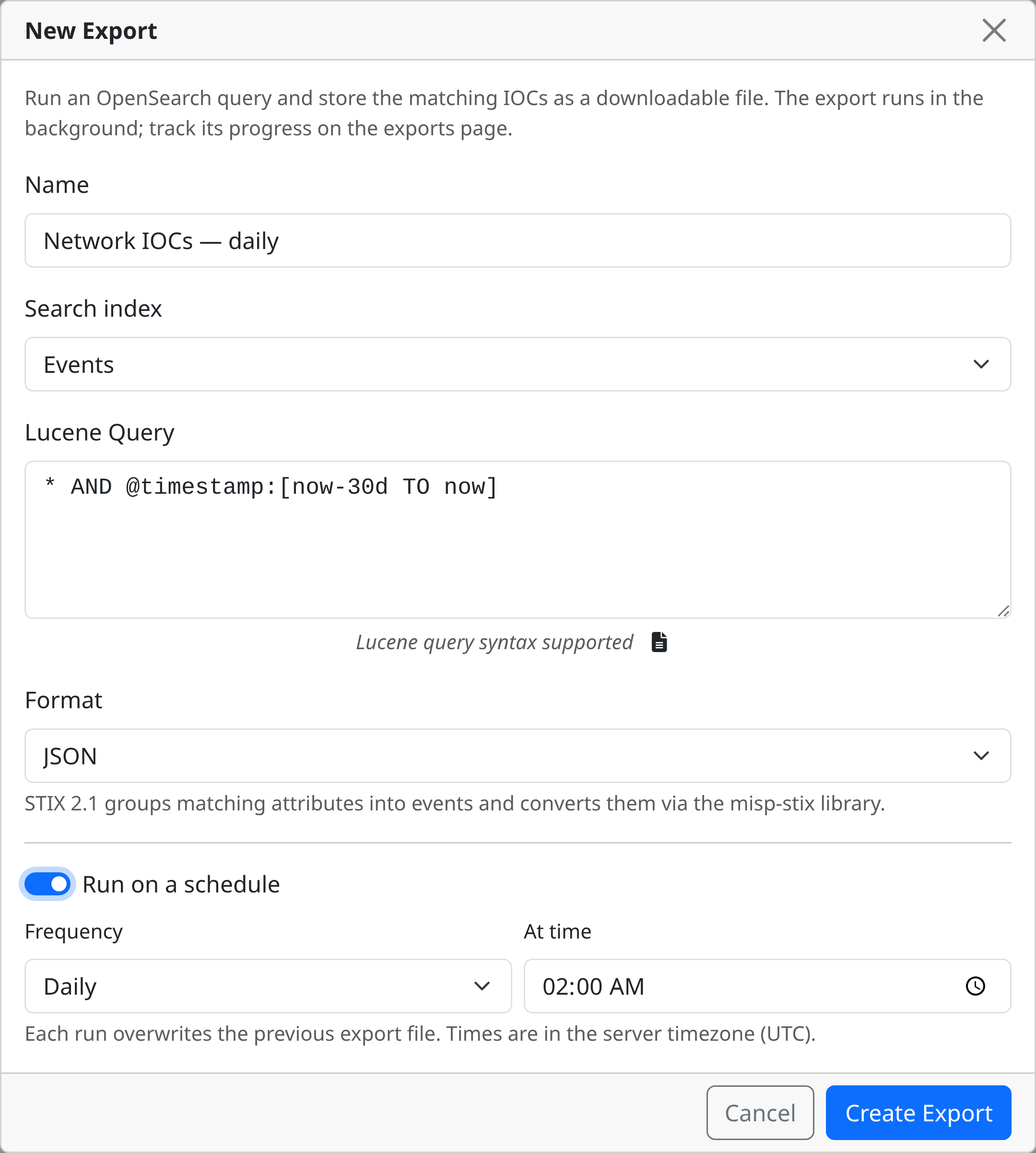
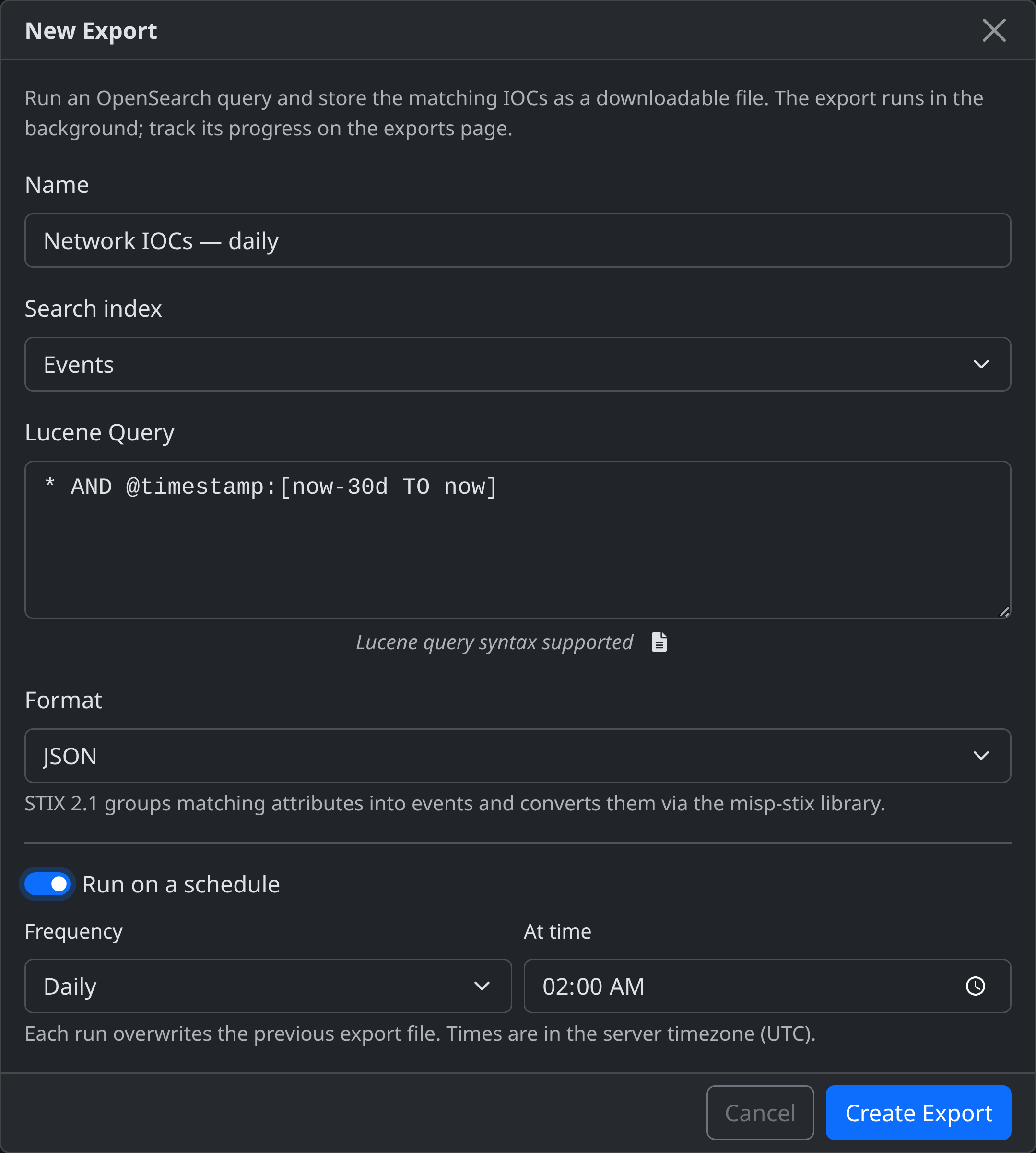
Give the export a name, pick the search index and format, and enter the Lucene query. (Optional) Toggle Run on a schedule to make the export recurring — see Scheduling below.
-
Click Create Export. The job is queued and runs immediately; the list polls until it settles to
completedorfailed. - Once
completed, click Download to fetch the file.
Use Run now on any row to re-run an export on demand — it re-executes the stored query and overwrites the existing file in place.
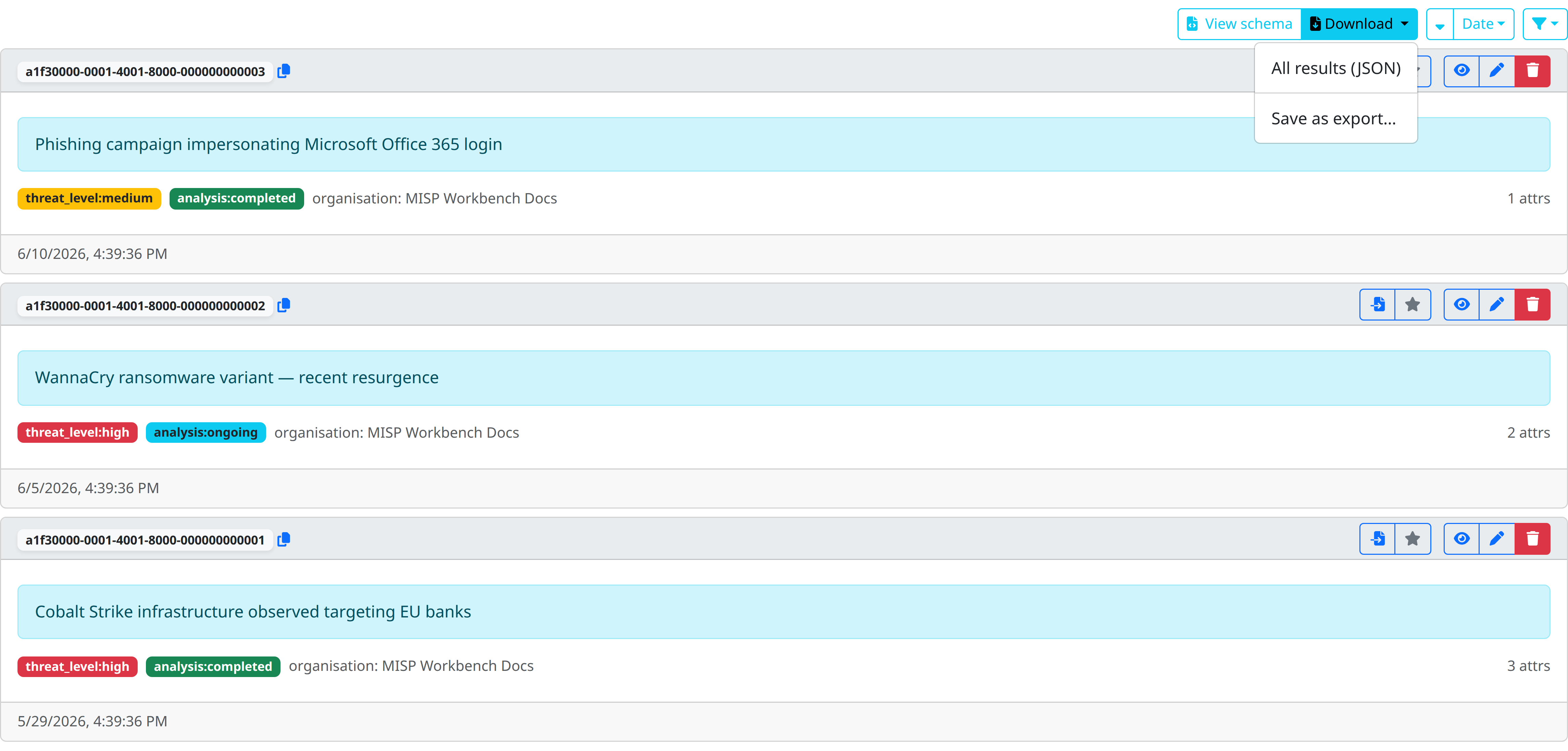
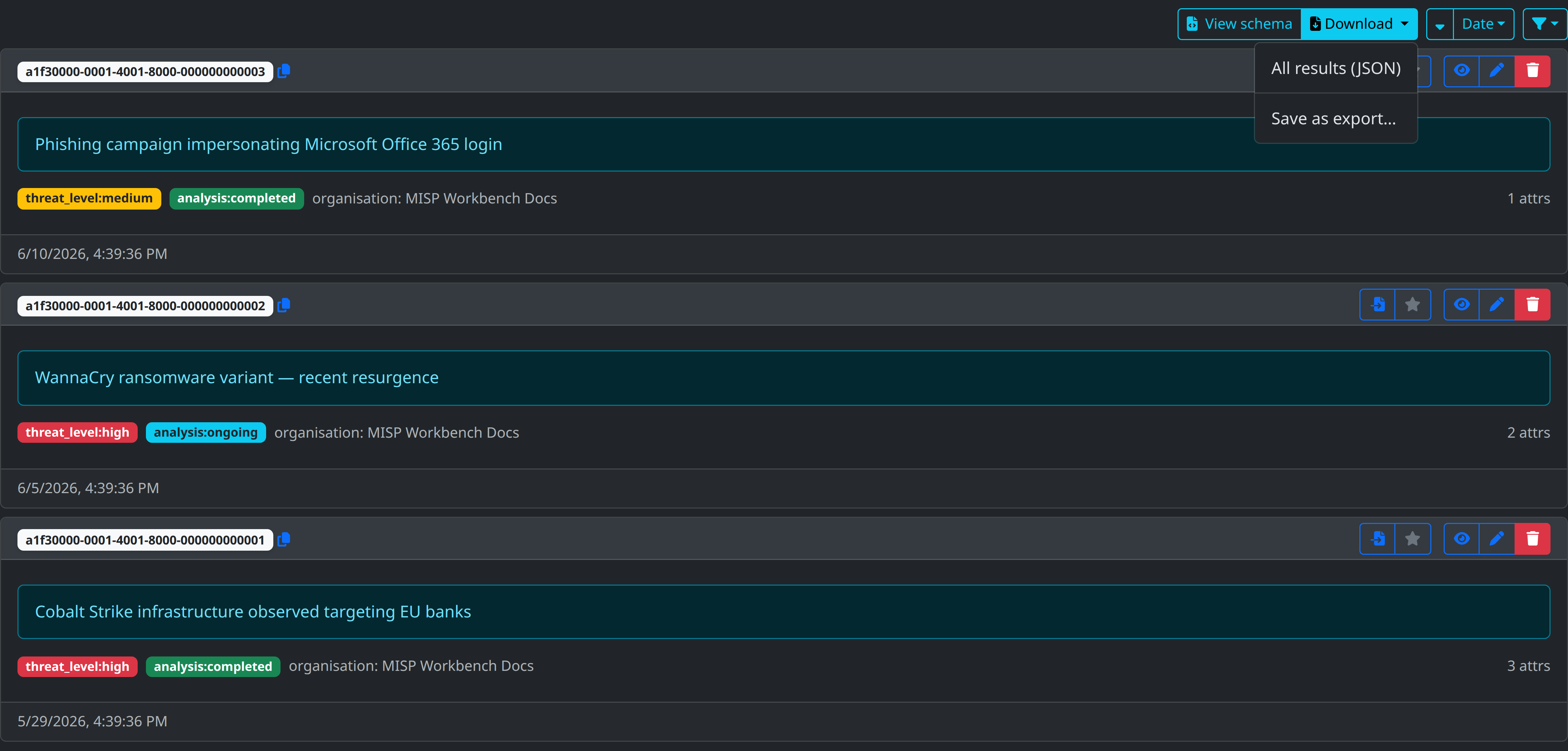
Alternatively, from the explore view use the Save as export… option in the Download menu — it opens the export dialog pre-filled with the current query.
Scheduling
When Run on a schedule is enabled, the export is registered with the periodic scheduler (redbeat) and re-runs on the chosen cadence. Each run reuses the same storage location, so the previous file is overwritten and no extra rows accumulate.
The schedule widget offers presets plus a custom option:
| Frequency | Runs |
|---|---|
| Hourly | Every hour at the chosen minute |
| Daily | Every day at the chosen time |
| Weekly | Every week on the chosen day and time |
| Monthly | Every month on the chosen day-of-month and time |
| Custom | A raw crontab expression (minute / hour / day-of-month / month / day-of-week) for full control |
Times are interpreted in the server timezone (UTC).
From the exports list you can manage a schedule at any time:
- Pause / Resume — temporarily stop a schedule without losing it.
- Edit schedule — change the cadence (or add one to an existing export).
- Unschedule — remove the schedule entirely; the export remains as a one-off and its last file is kept.
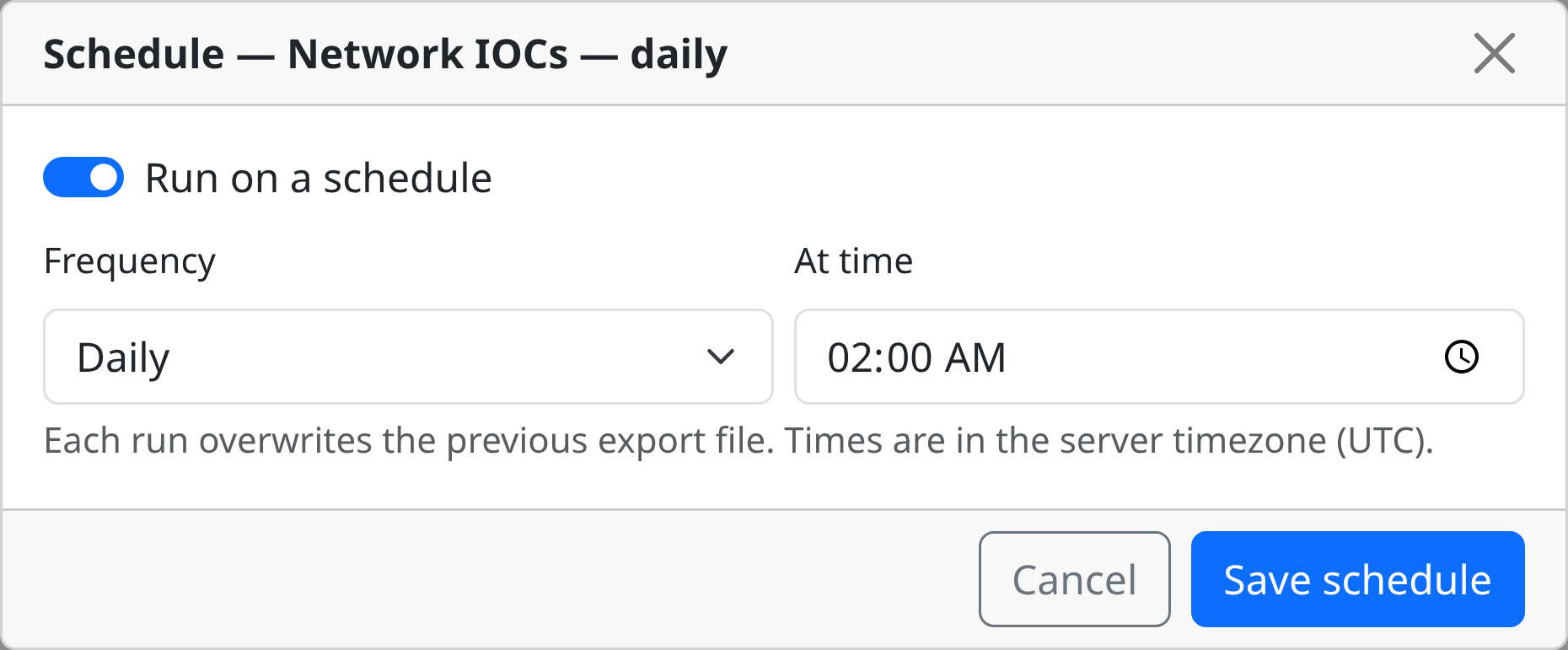
The list shows a summary of each schedule (e.g. Daily · 02:00), whether it is
paused, and when it last ran.


The Edit schedule action opens a dialog where you can change the cadence (or add a schedule to a previously one-off export):
Creating an Export using the API
POST /exports/
{
  "name": "Network IOCs — daily",
  "query": "type:ip-dst AND to_ids:true",
  "index_target": "attributes",
  "format": "json",
  "schedule": {
    "type": "crontab",
    "minute": "0",
    "hour": "2",
    "day_of_week": "*",
    "day_of_month": "*",
    "month_of_year": "*"
  },
  "schedule_enabled": true
}
schedule is optional — omit it (or send null) for a one-off export. For an
interval-based schedule instead of a crontab, use {"type": "interval", "every": 3600}.
Required scopes: exports:create
Downloading an Export
Streams the stored artifact. Only completed exports can be downloaded;
otherwise the endpoint returns 409 Conflict.
Required scopes: exports:read
Managing a schedule
- Send
schedule_enabledto pause (false) or resume (true). - Send a new
scheduleobject to change the cadence. - Send
"schedule": nullto remove the schedule (unschedule).
Required scopes: exports:create
API reference
| Method | Path | Description | Scopes |
|---|---|---|---|
GET |
/exports/ |
List all exports (paginated) | exports:read |
POST |
/exports/ |
Create an export (runs immediately) | exports:create |
POST |
/exports/{id}/run |
Re-run an export in place (overwrites its file) | exports:create |
GET |
/exports/{id} |
Get an export | exports:read |
PATCH |
/exports/{id}/schedule |
Set, pause/resume, or clear the schedule | exports:create |
GET |
/exports/{id}/download |
Download the stored artifact | exports:read |
DELETE |
/exports/{id} |
Delete the export (removes its schedule and file) | exports:delete |